
Beyond the Big Genres: Using Related Genres and Subgenre Panels to Find New Music
The styles next to the ones you already like are often the best place to look for new music. Here is how Music Soil’s Related genres lists and Discover’s subgenre panels work, and how to use them together.
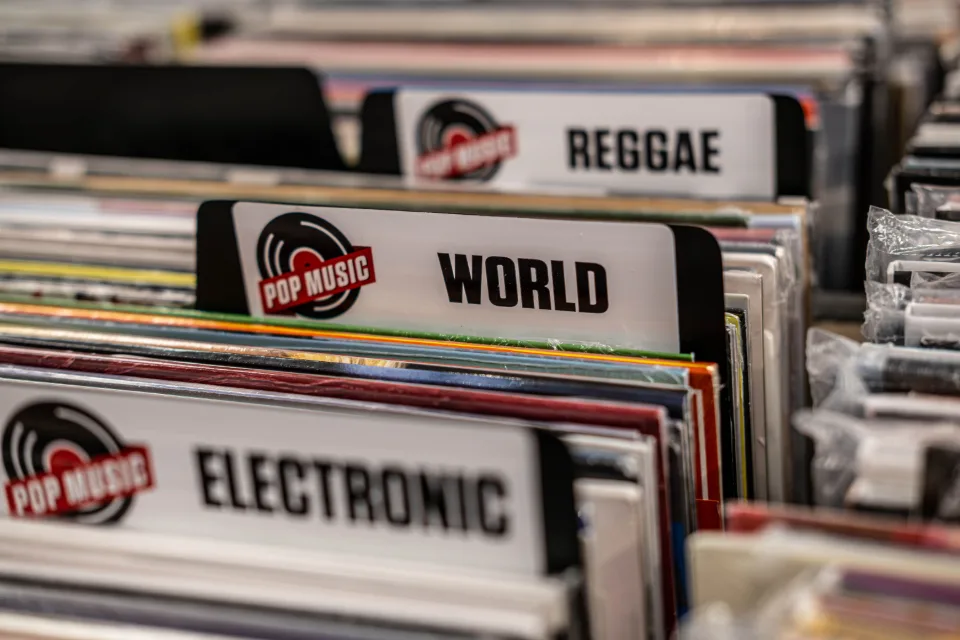
Most listeners can name the genres they like, but fewer can name the neighbouring styles they have not tried yet. Those neighbours are often the best place to look for new music, because they share instruments, scenes and artists with something you already enjoy.
Music Soil has two tools built for moving sideways like this: the Related genres list on every genre page, and the genre families on Discover, which open a panel of subgenres with result counts. This guide explains what each one shows, how its numbers are worked out, and a few routes that use them together.
What “Related” Means on Music Soil
Every genre page, such as Shoegaze or Post-Rock, has a Related genres box next to its short overview. The list is not an editor’s opinion. It is worked out from the catalog: two genres count as related when many of the same artists are listed under both, and the genres that share the most artists come first.
That method has a practical consequence. A related genre is one that real artists move between, so following it usually keeps you close to a sound you know. When this guide was written, the Shoegaze page listed Dream Pop, Indie Rock, Alternative Rock and Post-rock among its closest neighbours.
It also has a limit. Music Soil lists an artist under a genre only when that genre is recorded for the artist directly. Related genres are suggestions for where to look next; they never add a label to an artist. If a band appears on the Dream Pop page, dream pop is one of its own genres, not just a style next to something it plays.
Reading a Genre Page From Top to Bottom
A genre page has three parts worth using in order. The overview gives the number of artists Music Soil lists under the genre and names some of the most-viewed ones, with a link to the genre’s Wikipedia article when one exists, for background reading. The Related genres box gives you the exits. The artist list underneath shows a first selection of artists, ordered by Wikipedia page views over the last 90 days.
Because the list starts with the best-known names, it is a quick check that you are in the right place: if the first few artists are ones you already like, the genre is a sensible base. To go further than the first names, use Explore all in Discover. It opens Discover with that genre already selected, so you can filter and sort the full list.
Genre Families and Their Subgenre Panels
On Discover, the Genres area starts with a row of broad families: Rock, Metal, Punk, Electronic, Alternative & Indie, Jazz, Blues, Funk, R&B, Country, Pop, Soul, Reggae, Folk, Hip-Hop, Classical and Latin. Each family is a hand-picked group of subgenres meant for browsing. Some subgenres belong to more than one family; Hardcore, for instance, sits under Rock, Metal and Punk at the same time.
Selecting a family does two things. It adds the family as a filter, so the results include artists listed under any of its subgenres, and it opens a panel listing those subgenres. Each subgenre in the panel carries a number: how many results you would get if you added it to the filters you have selected. The panel is ordered by that number, and subgenres that would return nothing are left out.
Closing the panel keeps the family filter in place. Clicking a selected family whose panel is closed opens the panel again; clicking it while its panel is open removes the family. Your choices collect in the Selected Filters card, and the Find Results button applies them, showing how many results are ready when it already knows.
Let the Counts Do the Comparing
The counts in a panel follow the rest of your selection. With no other filter, they simply show how many artists each subgenre has. Add a country or a year range and they change to show how many artists fit both. That turns the panel into a quick comparison: you can see which metal subgenres have the most artists from one country, or which punk styles had artists active in a given decade, without running a separate search for each one.
Four other controls are worth knowing alongside the panel:
- Countries narrows the results to artists from the countries you choose.
- Years keeps artists whose recorded activity overlaps the range you set, so a band that formed in 1979 and never stopped still appears in a search for 1990 to 1995.
- Artist Status separates artists recorded as active from those recorded as inactive.
- Match All and Match Any decide whether results must carry every genre you picked or at least one of them.
Change one of these at a time and watch the panel. If a subgenre’s number drops to almost nothing, that filter is doing most of the narrowing.
Sorting to Find Less Obvious Artists
Results can be sorted by popularity, alphabetically or by year. Popularity uses Wikipedia article views over the last 90 days, so Most Popular brings familiar names to the top. Least Popular reverses that order. It is often the quickest route to artists you have not heard of, though it also surfaces artists with very little written about them, so expect to skip a few.
Newest and Oldest sort by the year an artist formed or started out. Oldest is especially useful in a subgenre with a long history: it puts the early artists first, so you can hear how a style began before moving forward in time.
Three Routes to Try
These routes combine the tools above. None of them needs more than a few clicks.
- From a sound you know to its neighbours: open Dream Pop, look at its related genres, and pick the one you know least. Read the first few artists on that page before going further.
- From a family to a local scene: on Discover, select the Punk family, add one country, and see which subgenres the panel ranks highest. Pick one and sort by Oldest.
- From a broad style to a narrow one: start at Heavy Metal, choose Explore all in Discover, then add a smaller subgenre such as Doom Metal with Match All to see only the artists listed under both.
Practical Takeaways
- Treat related genres as directions, not definitions: they show where artists overlap, not what an artist is.
- Use the numbers in a family panel to compare subgenres before you open any of them.
- Change one filter at a time so you can see what each one does to the counts.
- Sort by Least Popular or Oldest when the top results feel too familiar.
- When you already know an artist’s name, the Catalog or the artist search on Discover will take you straight to them, and their genres make a good next starting point.